
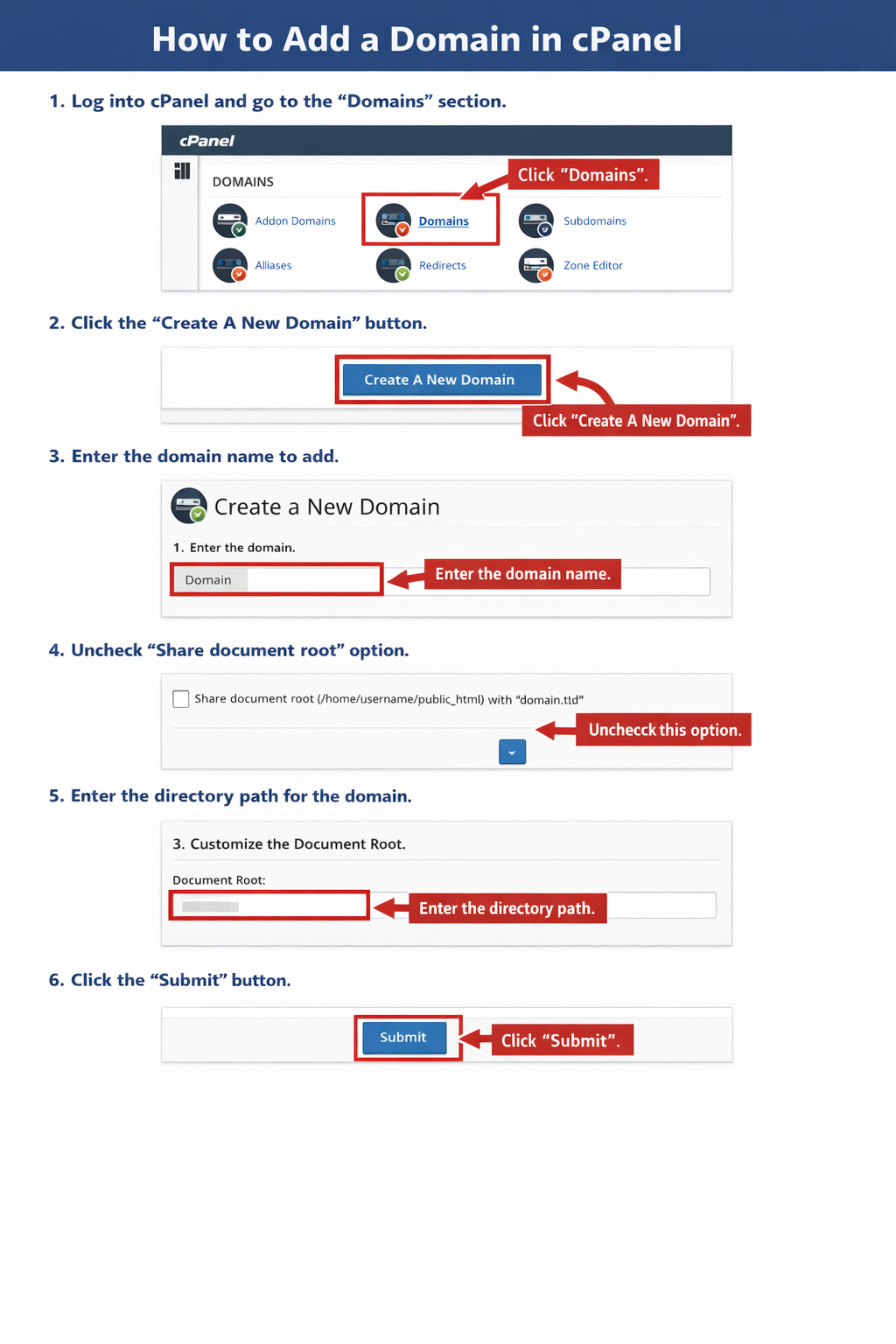
Step 1: Log in to cPanel
Log in to your cPanel account using the credentials provided.
Step 2: Open the Domains Menu
From the cPanel dashboard, locate the Domains section and click Domains
Step 3: Create a New Domain
Click the Create A New Domain button.
Step 4: Enter the Domain Name
In the Domain text box, enter the domain name you want to add.
Step 5: Configure the Document Root
- Deselect “Share document root (/home/username/public_html) with "domain.tld"
- Specify a custom directory where the domain files will be stored
Step 6: Submit the Domain
Click the Submit button to complete the process.
Once submitted, the domain will be added to your account and ready for file upload. DNS propagation may take up to 24 hours if the domain was newly pointed to the server.
Notes
Each domain should use a separate document root for better security and organization
Ensure the domain resolves to the correct server IP or nameserver
- ns1.web.com.ph
- ns2.web.com.ph
- ns3.web.com.ph
- ns4.web.com.ph
Addon domain is only available in the Business Plan